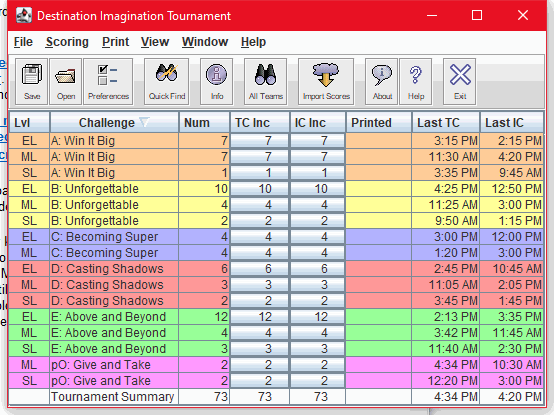
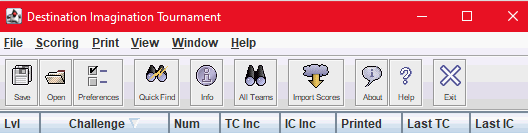
The Tournament Summary Window is the main window in the DI Scoring Program. It appears by default when you start the DI Scoring Program.
The Tournament Summary Window displays a summary of all challenges and levels in the tournament and helps you track your progress as you enter scores on tournament day. The menu in the Tournament Summary Window provides access to all of the main functions of the program.
The following topics describe the Tournament Summary Window:
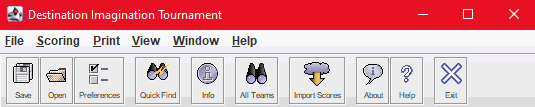
The toolbar icons in the Tournament Summary Window provide direct access to many of the features of the DI Scoring Program. The following table lists these icons, their ‘tool tip’ definitions and keystroke shortcuts, and links you to an explanation of what they do.
Icon
Tool Tip
Shortcut
Explanation
Save Tournament
Ctrl+S
Saves all team scores and other data for the current tournament. For more information, see Enter Instant Challenge Scores.
Opens the Preferences Editor so you can view and edit your preferences for the DI Scoring Program. For more information, see Preferences.
Quick Find
Ctrl+F3
Click this icon to open and use the ‘Quick Find’ tool. For more information, see Use the ‘Quick Find’ tool.
View Tournament Info
Ctrl+Z
Displays basic information about the tournament. To open the Tournament Wizard, in the Tournament Information window, click Modify. For more information, see Create and Define Your Tournament.
Opens the ‘Import Scores’ tool. For more information, see Import Scores.
Display Info about the Scoring Program
Displays basic information about the DI Scoring Program, including the version, build number and date of the current version. For more information, see Record the Version and Build Number.
Display Help Documentation
Opens the DI Scoring Program Help documentation in your default Internet browser.
Exit
Ctrl+X
Closes the DI Scoring Program.
Menu Items
The menu items in the Tournament Summary Window provide access to the features of the DI Scoring Program. The following table lists each menu, the commands and keystroke shortcuts (if one exists), and links you to a brief explanation of what they do.
Menu
Command
Shortcut
Explanation
File
Save Tournament
Ctrl+S
Save all tournament data and keeps the tournament open.
Saves the current tournament and opens another tournament.
File
Backup Tournament
Ctrl+B
Backs up the current tournament to the location designated in your Backup Preferences.
File
Set Preferences
Ctrl+P
Opens the Preferences Editor so you can view and edit your preferences for the tournament (and for the DI Scoring Program). For more details, see Set Preferences.
File
Merge
Ctrl+G
Merge scores from one computer to another computer. For more information, see The Merge Tool for more detailed instructions on how to define your merge plans.
Export tournament data to files that can be imported into another tournament. For more information, see Export the Results for complete details.
File
Generate HTML Results
Ctrl+H
Tournament-level report. Web page version of the Meet Summary. Lists the teams in rank order and indicates advancing and tied teams. You can set the number of teams ranked (list the remaining teams in alphabetical order) and include or omit scores. For more information, see Report Reference Table and Set Up the Tournament Web Page.
File
Create Certified Winners List
Tournament-level report. Creates a CSV file (Excel file) of selected data for teams advancing to the next level of competition. Required for advancement to Global Finals. For more information, see Report Reference Table.
File
Create Announcement CSV File
…
File
Create Appraiser CSV Files
Create CSV files with appraiser names and assignments – one file for each Challenge. Use these to import appraiser names and assignments from another tournament, or issue to Challenge Masters to report names and assignments for your tournament.
File
Import Teams from Tournament
Imports teams that have been exported from another tournament.
File
Import External Appraisers
Imports appraiser names and assignments from another tournament, or from another computer that’s not linked by a network.
File
Lock Tournament
Locks or unlocks the tournament so the data cannot or can be changed – if the box before the word “Lock” is checked the tournament is locked. Click the line on the drop-down menu to change to the other condition. See Lock and Unlock Files in the Tournament Directory for details.
File
Exit
Ctrl+X
Closes the DI Scoring Program.
Menu
Command
Shortcut
Explanation
Scoring
Open Challenge-Level (sort: TC Time)
Ctrl+T
Highlight a challenge and level on the list and then select this menu item to open that Challenge Level Window. For more information, see Enter Team Challenge Scores.
Scoring
Open Challenge-Level (sort: IC Time)
Ctrl+I
Highlight a challenge and level on the list and then select this menu item to open that Challenge Level Window. For more information, see Enter Instant Challenge Scores.
Menu
Command
Shortcut
Explanation
Print
Inst Check Sheets
Tournament-level report. Worksheets used by Instant Challenge. List teams by challenge and level in order of their Instant Challenge starting time, with columns for scores, deductions, and an appraiser’s initials. For more information, see Report Reference Table.
Print
Log Sheets
Tournament-level report. Lists the Team Challenge and Instant Challenge schedule for each challenge level. The log sheets have a box to mark the team’s arrival or completion of a task. For more information, see Report Reference Table.
Print
Appraiser Assignments
Tournament-level report. Lists the appraisers by challenge and level, and indicates the scoring elements to which each appraiser is assigned. For more information, see Report Reference Table.
Print
Finish Times Report
Tournament-level report. Lists the time of day that each challenge level is expected to complete the Team Challenge and Instant Challenge parts of the tournament. Time listed is last TC/IC start time + 30 minutes. For more information, see Report Reference Table.
Print
Final Scores
Tournament-level report. Lists teams in rank order with the raw and scaled total scores for each team. Indicates advancing and tied teams. For more information, see Report Reference Table.
Print
Only N Places (see prefs)
Tournament-level report. Lists teams in rank order with the raw and scaled total scores for each team. Indicates advancing and tied teams. Includes only the first N places as specified in Printing Preferences. For more information, see Report Reference Table.
Print
Meet Summary
Tournament-level report. Lists the teams in rank order and indicates advancing and tied teams, but omits all scores. You can set the number of teams ranked and list the remainder in alphabetical order. For more information, see Report Reference Table.
Print
Meet Summary with Scores
Tournament-level report. A Final Scores Report for all challenges in the tournament. Lists the teams in rank order with raw and scaled total scores for each team. Indicates advancing and tied teams. For more information, see Report Reference Table.
Print
Meet Summary with Scores (rtf)
Tournament-level report. A Final Scores Report for all challenges in the tournament. Lists the teams in rank order with raw and scaled total scores for each team. Indicates advancing and tied teams. Report is in Microsoft Word RTF (rich text format) file which can be saved. For more information, see Report Reference Table.
Print
Unresolved Issues
Tournament-level report. Lists all outstanding issues, including the time the issue was reported and descriptive comments. For more information, see Report Reference Table and Print Issue Reports.
Print
All Issues
Tournament-level report. Lists all issues raised thus far in the tournament, including the time the issue was reported and descriptive comments. For more information, see Report Reference Table and Print Issue Reports.
Print
Page Setup
Opens the page setup dialog box for your operating system. Use this dialog box to select a printer, set page margins, and set the default report orientation.
Minimizes all windows except for the current window.
Menu
Command
Shortcut
Explanation
Help
About
Displays basic information about the DI Scoring Program, including the version, build number and date of the software currently installed on your computer. For more information, see Record the Version and Build Number.
Help
Contents
F1
Opens the DI Scoring Program Help file in your computer’s default Internet browser.