
Unlike the Tournament Summary Window with its list of challenges and levels, and the All Teams Window that offers you a view of your entire tournament, each challenge level window displays the teams in only one challenge and level.
You can sort the team rows by nearly any column – TC time, IC time, team number, team name – or a combination of several columns. You can select which columns to display at any time. There’s also a powerful search tool you can use to locate any character string you need to find – whether it’s part of a membership name, team name, team number, team manager’s name, town, … (but only if you’ve entered all that data, of course).
For those who are entering scores for a small subset of challenges and levels, the individual challenge level windows are likely to be more useful. The All Teams Window might be more useful to scoring team leaders and those who need access to the teams of many different challenges and levels.
If you’re using the Detailed with Appraisers scoring mode, you’ll need to use the individual challenge level windows to enter the names of all your appraisers and assign the scoring elements for each appraiser in that challenge and level. For more information, see Add and Change Appraisers.
Take a look at these topics related to the challenge level windows:
- Toolbar Icons
- Menu Items
- The Columns
- The Ultimate Search Tool
- Filtering the Challenge Level Windows
- Sorting any Challenge Level Window

Toolbar Icons
The toolbar icons in the challenge level windows provide access to many of the same features available in the Tournament Summary Window. The following table lists these icons, their ‘tool tip’ definitions and keystroke shortcuts, and indicates an explanation of what they do.
 | Save Tournament | Ctrl+S | Click this icon to save the information for your entire tournament. |
|---|---|---|---|
 | Print Final Scores | Click this icon to print final scores for this challenge level. | |
 | Add New Team | Click this icon to open the Team Editor. From there you can add a team; by default it’s added to this challenge level. For more information, see Add New Teams. | |
 | Modify Team | Ctrl+M | Highlight a team on the list and then click this icon to modify the team data, including competition times and dates, and raise, resolve, or comment on issues. For more information, see Track Issues and Change Team Data. |
 | Quick Find | Ctrl+F3 | Click this icon to open and use the ‘Quick Find’ tool. For more information, see Use the ‘Quick Find’ tool. |
 | Enter Instant Challenge Appraisers | Click this icon to open the Edit Appraisers window for Instant Challenge Appraisers. For more information, see Add and Change Appraisers and Detailed Instant Challenge Scoring. | |
 | Enter Team Challenge Appraisers | Click this icon to open the Edit Appraisers window for Team Challenge Appraisers. For more information, see Add and Change Appraisers. | |
 | Import Scores | Opens the ‘Import Scores’ tool. For more information, see Import Scores. | |
 | Close | Click this icon to close this challenge level window. |
Menu Items
The menu items in the the challenge level windows provide access to almost all the same features that are available in the Tournament Summary Window. The following table lists each menu, the commands and their keystroke shortcuts (if one exists), and links you to a brief explanation of what they do.
| Menu | Command | Shortcut | Explanation |
|---|---|---|---|
| File | Save Tournament | Ctrl+S | Saves all tournament data and keeps the tournament open. |
| File | Lock Challenge Level | Locks the challenge level so the data cannot be changed. | |
| File | Backup Tournament | Ctrl+B | Backs up all Tournament data. |
| File | Check Scores | Compares scores on one computer with those on another computer. First you must define the cross-check directory in Scoring Preferences. For more information, see Cross Checking for Score Entry Accuracy. | |
| File | Set Instant Challenge | Set the Instant Challenge to be used. Select the appropriate Instant Challenge from the pull down menu. Once the Instant challenge is selected, the Instant Challenge appraisers can be added. For more information, see Detailed Instant Challenge Scoring. | |
| File | Close Window | Ctrl+W | Closes the challenge level window. |
| Menu | Command | Shortcut | Explanation |
|---|---|---|---|
| Edit | Add New Team | Ctrl+N | Adds a new team to the challenge level. For more information, see Team Editor. |
| Edit | Modify Team | Ctrl+M | Highlight a team on the list and then select this menu item to modify the team data, including challenge times, and raise, resolve, or comment on issues. For more information, see Track Issues and Change Team Data. Note: You can also use the modify team window to change the team’s Team Challenge selection or competition Level. |
| Edit | Delete Team | Highlight a team on the list and then select this menu item to delete the team from your tournament. | |
| Edit | Quick Find | Ctrl+F3 | Opens the ‘Quick Find’ tool. For more information, see Use the ‘Quick Find’ tool. |
| Edit | Enter Team Challenge Scores | Ctrl+T | Highlight a team on the list and then select this menu item to enter their team challenge scores. For more information, see Enter Team Challenge Scores. |
| Edit | Enter Instant Challenge Scores | Ctrl+I | Highlight a team on the list and then select this menu item to enter their instant challenge scores. For more information, see Enter Instant Challenge Scores. |
| Edit | Enter TC Appraisers | Opens the Edit Appraisers window for Team Challenge appraisers. For more information, see Add and Change Appraisers. | |
| Edit | Enter IC Appraisers | Opens the Edit Appraisers window for Instant Challenge Appraisers. For more information, see Add and Change Appraisers and Detailed Instant Challenge Scoring. |
| Menu | Command | Shortcut | Explanation |
|---|---|---|---|
| Final Scores | Challenge-level report. Lists teams in rank order with the raw and scaled total scores for each team. Indicates advancing and tied teams. For more information, see Report Reference Table. | ||
| Entered Scores | Ctrl+E | Challenge-level report. Lists teams in rank order with the raw scores for each team for which acores are currently entered. For more information, see Report Reference Table. | |
| TC Log Sheets | Tournament-level report. Lists the Team Challenge schedule for this challenge level. The log sheets have a box to mark the team’s arrival or completion of a task. For more information, see Report Reference Table. | ||
| IC Log Sheets | Challenge-level report. Lists the Instant Challenge schedule for each challenge level. The log sheets have a box to mark the team’s arrival or completion of a task. For more information, see Report Reference Table. | ||
| IC Check Sheets | Challenge-level report. Scoring sheets for instant challenge. List teams in order of their Instant Challenge starting time, with columns for scores, deductions, and an appraiser’s initials. For more information, see Report Reference Table. | ||
| TC Appraiser Assignment Sheet | Challenge-level report. Provides a blank form onto which Team Challenge appraiser assignments can be written – used to communicate this information to the score room from the challenge site. For more information, see Report Reference Table. | ||
| Existing TC Appraisers | Challenge-level report. Lists the TC appraisers and indicates the scoring elements to which each appraiser is assigned. For more information, see Report Reference Table. | ||
| IC Appraiser Assignment Sheet | Challenge-level report. Provides a blank form onto which Instant Challenge appraiser assignments can be written – used to communicate this information to the score room from the challenge site. For more information, see Report Reference Table. | ||
| Existing IC Appraisers | Challenge-level report. Lists the IC appraisers and indicates the scoring elements to which each appraiser is assigned. For more information, see Report Reference Table. | ||
| Team’s Detail Scores | Team-level report. Highlight a team and then select this menu item to print a copy of the Team’s Score Sheet, which displays only the average score for each item and the rolled-up totals. | ||
| Appraisers’ Detail Scores | Team-level report. Highlight a team and then select this menu item to print a copy of the Appraisers’ Detail Score Sheet, which displays all the individual appraisers’ scores. | ||
| Score Room Detail Scores | Team-level report. Highlight a team and then select this menu item to print a copy of the Score Room Detail Score Sheet, which displays all the individual appraisers’ scores plus the check digits. | ||
| Appraiser Feedback | Team-level report. Highlight a team and then select this menu item to print a copy of the the score-related remarks for an individual team. Works only if remarks exist. | ||
| IC Scores for Score Packet | Team-level report. Highlight a team and then select this menu item to print a copy of the IC Appraisers’ Detail Scores, which displays all the individual IC appraisers’ scores. Remember that this report is NOT to be given to the team, but only for the IC Challenge Master’s use. | ||
| Page Setup | Opens the page setup dialog box for your operating system. Use this dialog box to select a printer, set margins, and set the default page orientation. |
| Menu | Command | Shortcut | Explanation |
|---|---|---|---|
| View | Filters | Ctrl+F | Open or close (toggle) the Filter definition bar for the challenge level window .If you have active filters, they are displayed on the Filter definition bar. For more information, see Filters. |
| View | Add Filters | Adds another level of filtering. If you have active filters, they are displayed on the Filter definition bar. For more information, see Filters. |
| Menu | Command | Shortcut | Explanation |
|---|---|---|---|
| Window | Calculator | Opens the DI Scoring Program calculator. For more information about the calculator, see The Calculator. | |
| Window | Tournament Summary | Opens the Tournament Summary Window. | |
| Window | All Teams | Opens the All Teams Window. | |
| Window | ML:ESCAPE, etc. | Opens the selected challenge level window. | |
| Window | Hide others | Minimize all windows, except for the current window. To find the current window, in the Window menu, look for the check mark that indicates the current window. |
The Columns
Here’s a brief description of each of the columns available in the challenge level windows; see Select Challenge Level Window Columns to select the ones for your tournament.
| Team Num | The team’s registration number |
|---|---|
| Team Chall | The abbreviated team challenge name |
| Inst Chall | The assigned instant challenge name (used only for Global Finals) |
| Level | The team’s competition level |
| Memb Name | The name under which the team is registered |
| Team Name | The nickname or alternate name under which the team chooses to appear in competition |
| Town | The name of the town or city the team represents |
| Manager | The name of one or more team managers |
| TC Time | The time that their team challenge begins |
| TC Day | The day their team challenge is scheduled |
| TC Done | The checkbox indicates the team challenge score entry is complete |
| TC Issue | The checkbox indicates a Team challenge Issue is unresolved |
| IC Time | The time their instant challenge begins |
| IC Day | The day their instant challenge is scheduled |
| IC Done | The check box indicates that the instant challenge score entry is complete |
| IC Issue | The check box indicates that an instant challenge Issue is unresolved |
| Status | Indicates that a team is performing but not competing |
| Issue | The check box indicates that an issue (TC or IC) is unresolved |
| Deduction | The check box indicates that a deduction has been entered. |
| Check | This checksum is a unique representation of all data (team identity and scores) entered for the team; see Display Check Digits to control display |
The Ultimate Search Tool

This search capability is very powerful. Just enter any character string – as short or as long as you need – and only those lines containing that string will appear in the window.

Search only the columns (fields) that are relevant.
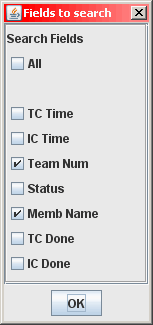
To find all the teams competing in Team Challenge at “9-something” in the morning, include the TC Time field and then type 9:. To see only the teams with a certain team number, include the Team Num field and just type the specific digits. Try it, you’ll like it!
Then click the “x” to remove the search criteria and display all the teams again.
How to Filter the Challenge Level Windows
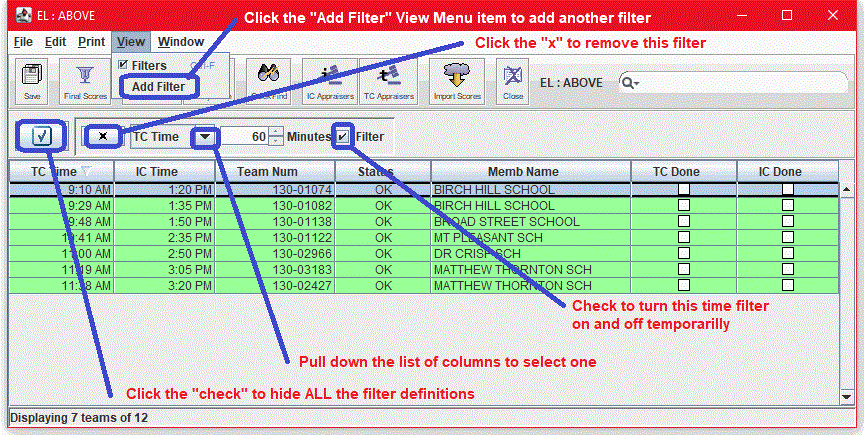
Unlike when you are filtering the All Teams Window, each Challlenge Level Window is never going to display teams from other challenges or levels. See the list of all Columns immediately above to see your choices – see what can be used to filter this window. Also be aware that EACH Challenge Level Window uses its own separate Filter definition(s) – they don’t have to be the same AND you must enter your requests separately for each one.
For example, the example above displays only those teams scheduled for their Team Challenge more than 90 minutes before this “snapshot” was taken (at 2:30 PM). If this time filter is combined with another filter based on the TC Done column, you could display only those teams whose scores should arrive during the next selected time interval. How’s that for keeping your focus on only a minimum number of teams at any one time! And something very similar may be used for Instant Challenge times.
In these Challenge Level Windows, to add a filter pull down the View menu and click on Add Filter. Add as many filters as you wish to use. Pull down the list of column names to select the one on which you want to design each filter. Leave the check mark before the values you want to appear in your All Teams Window. False and true can be interpreted as No and Yes. Click the small “x” to remove a particular filter. If you want to completely remove all the filter(s), you must separately click the small “x” for each one.
Click the large “check” mark to hide the filter definition panel while retaining the filters you have defined (to get your window space back). Pull down the View menu on this Window and check the box on the Filters line to get your definitions back when you want to view or edit or remove them.
Sorting
The default sort, in place whenever a challenge level window is opened, is by TC Time.
But you say, “That’s not what I want!”
So, click your way to your own sort! Each column heading is a button; click once to sort that column ascending. Click again to switch to descending order.
The arrow that appears in a column heading helps you keep track of whether your selected order is up or down, and which column you sorted on LAST.