
The DI Scoring Program stores all of the data related to a tournament in a directory (or folder) on the computer’s hard drive, known as the tournament directory. There is a separate tournament directory for each tournament. Users select a location for the tournament directory when they create a tournament.
The tournament directory contains all of the data that the DI Scoring Program uses or produces during a tournament, and all of the data needed to duplicate or reconstruct the tournament on any other computer running the DI Scoring Program.
Whenever you have your tournament open in the DI Scoring Program, the files in your tournament directory are ‘open and in use.’ To minimize the number of tasks on which you as a computer operator must concentrate, the DI Scoring Program automatically saves all the data in a window whenever you leave that window, unless you specifically instruct the program not to Save – by using a button such as Cancel to close that window.
Sometimes you or someone else might be just browsing through windows (such as team score sheets) without any intent (or need or authority) to change any data. To avoid any inadvertent writing of data to the tournament directory – once some or all of your tournament scoring is complete, for instance – you may wish to Lock some or all of the challenges in your tournament directory.
A very handy use for this feature is to lock each challenge level after you print the final scores for that part of your tournament. That way, if someone makes a legitimate change, the need to unlock that file will serve as a reminder to reprint that challenge level before the awards are announced or results are distributed.
The DI Scoring Program gives you the tools to lock and unlock all challenge levels in your tournament or a single challenge level.
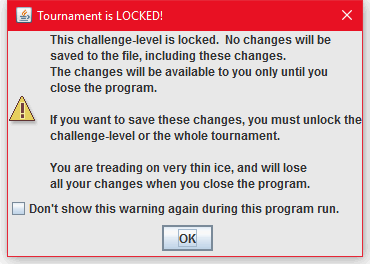
If the tournament or a challenge level is locked, and if you do anything that would change team data (such as a Save), the following message appears explaining that the item is locked:
To Lock the Tournament
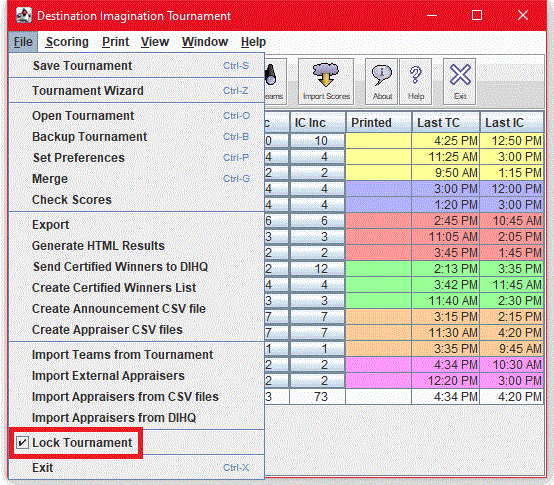
- In the Tournament Summary Window or the All Teams Window, from the File menu, select Lock Tournament. A check mark will appear in the box next to the Lock Tournament menu item when the tournament has been locked. The box is empty when the Tournament is unlocked and is light gray with a check if one or more challenge levels are locked.
To Unlock the Tournament
- In the Tournament Summary Window or the All Teams Window, from the File menu, click to uncheck the box before Lock Tournament, or just click anywhere on that menu row. Even if only some challenge levels were locked, all are now Unlocked.
To Lock a Challenge Level
- In that challenge level window, from the File menu, click the check box before Lock Challenge Level.
To Unlock a Challenge Level
- In that challenge level window, from the File menu, click to uncheck the box before Lock Challenge Level.