
This topic describes the format and operation of the Tournament Summary Window, the challenge level windows, and the score sheets.
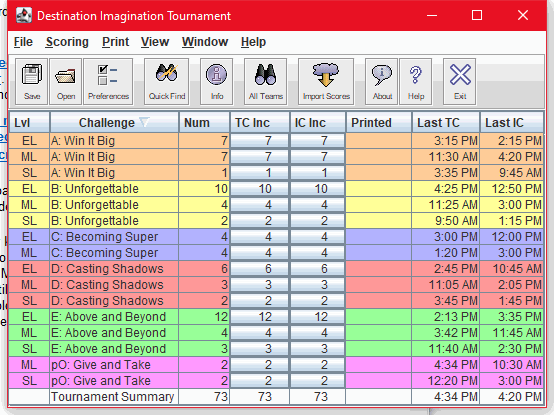
The default main window, which we’ll refer to as the Tournament Summary Window, appears when you start the DI Scoring Program. It lists each challenge level in your tournament and indicates the number of teams remaining unscored and the time of the last competition in each challenge level.
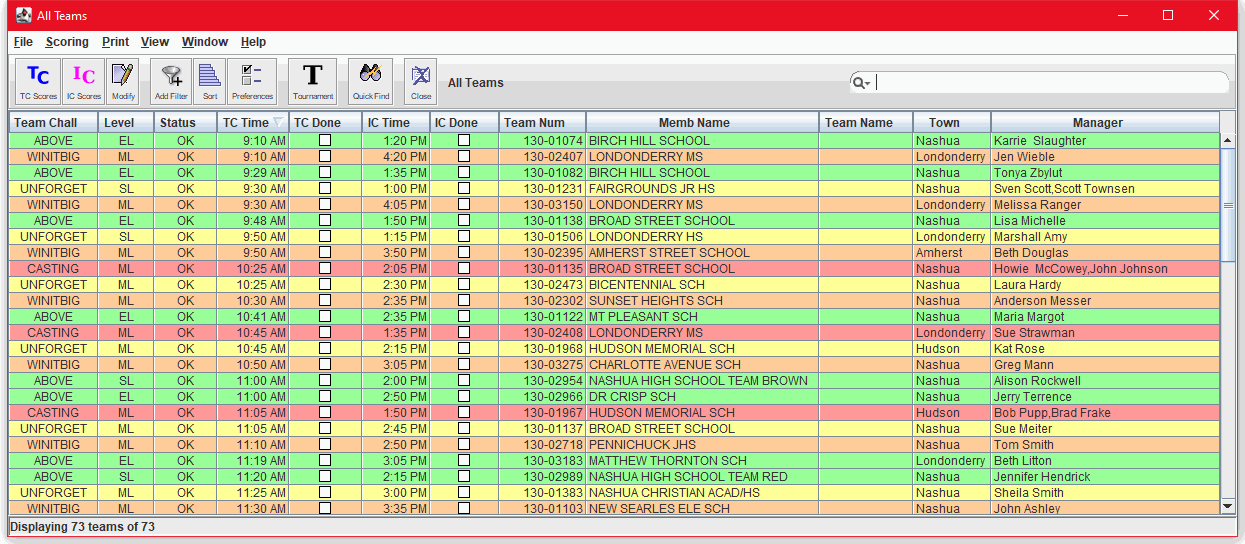
The primary alternate to this is the All Teams Window, which directly lists all teams from all challenge levels, or your choice of almost any subset of these, indicating for each team whether the Team Challenge and Instant Challenge scores have been entered.
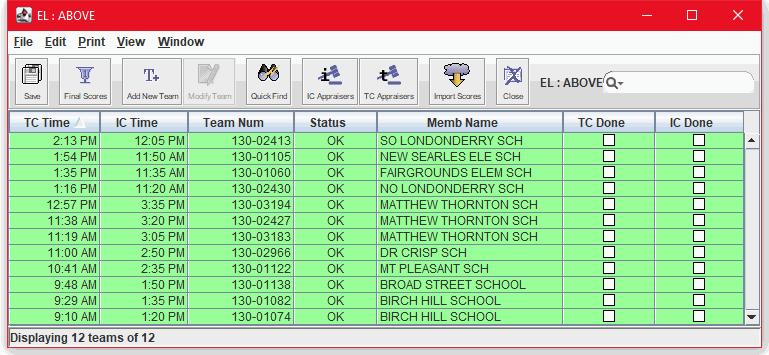
From either the Tournament Summary Window or the All Teams Window you can reach each of the Challenge Level Windows. Each of these lists only those teams in that specific Challenge and Level, similarly indicating whether each team’s Team Challenge and Instant Challenge scores have been entered.
The Window Menu on each of these windows allows you to open any of the others.
The Tournament Summary Window, the All Teams Window and the Challenge Level Windows share many of the same features. First let’s take a quick look at a sample of each one – based on the Sample Tournament supplied with the DI Scoring Program.
Tournament Summary Window
All Teams Window
Challenge Level Windows
Click on each of the links below to read about the features of these windows, including a detailed description of the toolbar buttons and pull-down menus.
- Explore the Tournament Summary Window
- Explore the All Teams Window
- Explore the Challenge Level Windows
- Explore the Score Sheets
Explore the Score Sheets
The DI Scoring Program now provides only one type of score sheet, the Detail score sheet.
The score sheet is an editable form in which you type scores. There is a separate Team Challenge score sheet and Instant Challenge score sheet for each team. Scores are considered to be complete when both score sheets are full and the data is saved.
Open a Score Sheet
To open a Team Challenge score sheet
- In a challenge level window, click the team’s row to highlight it, and then, from the Edit menu, select Enter Team Challenge Scores.
- Or press Ctrl+T after highlighting that team’s row.
- Or click the cell in the TC Done column of that team’s row.
To open an Instant Challenge score sheet:
- In a challenge level window, click the team’s row to highlight it, and then, from the Edit menu, select Enter Instant Challenge Scores.
- Or press Ctrl+I after highlighting that team’s row.
- Or click the cell in the IC Done column of that team’s row.
Close a Score Sheet
Save will save the entered scores and Close the score sheet. Find Save
- From the Save icon on the toolbar
- At the top of the File dropdown menu
- Use the Ctrl+S keystrokes
- From the Save button at the bottom of the score sheet
Clear will remove all entered scores (saved or not), but leave the score sheet open. Find Clear
- From the Edit dropdown menu
Revert will remove all unsaved scores, but leave the score sheet open. Find Revert
- From the Revert icon on the toolbar
- Near the bottom of the File dropdown menu
- Use the Ctrl+R keystrokes
- From the Revert button at the bottom of the score sheet
Cancel will remove all unsaved scores and Close the score sheet. Find Cancel
- From the Cancel icon on the toolbar
- At the bottom of the File dropdown menu
- Use the Ctrl+C keystrokes
- From the Cancel button at the bottom of the score sheet
Tour the Score Sheet
This section reviews the parts of the score sheet. Open a score sheet for your tournament or for the Sample Tournament and note its features as you read the following description.
The Columns
All of the scores sheets have a Description column, which lists the element being scored. The remaining columns store the scores. You can type only in the white cells in the score sheet; the other cells are for display only.
On the Detail score sheet with appraisers, you type scores in the appraiser columns, and the program calculates the sum or average, or lists the consensus score in the Score column.
In the Detail score sheet without appraisers, you type a manually calculated sum, average, or consensus score in the Score column.
The Check Digits
As you type, the DI Scoring Program calculates check digits, which are displayed at the bottom of the score sheet. The check digits represent all data typed into the form. You can use the check digits to determine whether the scores on two sheets are identical without comparing each entry.
For more information, see Select Methods for Checking Scores. Also, if your score sheet does not have check digits, it is because they are not used in your tournament and have been turned off. For more information, see Set Check Digits.
Menus and Toolbar
The menus and toolbar on the score sheets provide access to features that are specific to the score sheet. The following table lists the menu and toolbar items and explains what they do.
| Icon | Shortcut | Command on File or Edit Menu | |
|---|---|---|---|
 | Ctrl+S | Save | Saves all data to the tournament directory and closes the score sheet. |
 | Ctrl+M | Modify Team | Let’s you change team data, including challenge times, and raise, resolve, or comment on issues. For more information, see Change Team Data and Track Issues. |
| Ctrl+F | Print Feedback | Prints the list of issues for the current team. | |
 | Automatic Printing | Turns automatic printing of detail score sheets on and off for the current team. The icon indicates whether automatic printing is off (icon shows red “no” symbol) or on (no red symbol). This button does not change the automatic printing preference. For more information, see Automatically print detail score sheets. | |
 | |||
 | Ctrl+K | Check Scores | Causes an immediate cross-check of this team’s scores on this computer with those recorded on the other computer identified in this computer’s preferences. For more information, see Check Scores. |
| Alt+D | Modify Other Deductions | Opens the “Other” deductions cell to enable entry of non-item-specific deductions. | |
| Clear | Clears changes since the last save, but keeps the score sheet open. | ||
| Home | First Modifiable Score | Moves focus to the first modifiable cell at the top left of the score sheet. | |
 | Ctrl+R | Revert | Cancels changes since the last save, but keeps the score sheet open. |
 | Ctrl+C | Cancel | Cancels changes since the last save and closes the score sheet. |