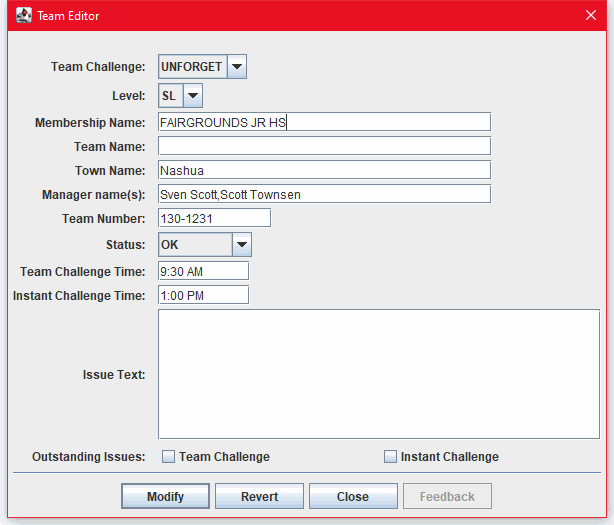
In this task, you add your teams to the tournament by typing them into the DI Scoring Program. The DI Scoring Program saves your teams in the tournament directory.
You can either use the Tournament Wizard or the Add New Team feature to add all of your teams to the tournament, or to supplement the teams that you typed in or loaded from a team data file. And, you can always come back to add teams that register late in the process, or show up unexpectedly.
Tip!
For instructions on copying, deleting or changing team data, see Maintain Team Data.
To use the Add New Team utility:
Use one of the following options:
In the All Teams Window, from the Scoring menu, select Add New Team. – or –
In the Tournament Summary Window, double-click the row for the challenge level in which the team is participating.
In the Team Editor dialog box, type the team data in the text boxes. The following table describes the data that goes in the Team Editor.
Team Challenge
Select the abbreviated version of the Team Challenge name from the dropdown list. If you started in a challenge-level window, this item is disabled and it is set to the team challenge in the current challenge level window.
Level
Select the team’s level. If you started in a challenge-level window, this item is disabled and it is set to the team challenge in the current challenge level window.
Membership Name
The name of the school or organization under which the team is registered such as, Our Town Elementary or Keepum After School Club.
Team Name
If several teams have the same membership name, each may decide to adopt a separate Team Name or nickname, such as “The Big Boppers” or “Super Shapers.”
Town Name
The name of the town, city, province, region, or locale that the team represents.
Manager name(s)
The Team Manager name(s) may be included if your tournament is one in which you have many teams from the same or similarly named schools.
Team Number
The registration number of the team. This number must consist only of numbers and hyphen(s), either in the simple form 12345 or 23579, or including the affiliate number prefix as 135-12345. No leading zeroes are necessary. The separator character must be the hyphen for input data; the character selected in preferences applies only to the display of team numbers.
Status
Select from the dropdown list: OK, No Show, Disqualified, Non Competing, or Withdraw.
Team Challenge Time
The time that their Team Challenge begins, in one of the following formats: 1:25 PM, 1:25, 13:25, or 1325.
Instant Challenge Time
The time that their Instant Challenge begins, in one of the following formats: 1:25 PM, 1:25, 13:25, or 1325.
Notes about Time
The DI Scoring Program accepts time in variety of formats, but it displays the time in accordance with the time format preference set for the program. To view or change the time format preference, see Set the Date and Time Format.
If you enter a 12-hour time without AM or PM, the DI Scoring Program interprets all times earlier than the tournament start time as PM and all times equal to or greater than the tournament start time as AM. For example, if the tournament start time is 8:00 AM, the program interprets 9:00 as 9:00 AM and 7:00 as 7:00 PM.
To save the new team, click Add, to discard your changes and keep the Team Editor open, click Revert , or to close the Team Editor, click Close.